
How to Add Album Art to MP3 Quickly (Windows/Mac/Mobile)
By Vivian Cole Updated on 2025-11-24
We've all been there: scrolling through our music library and realizing half your MP3 files have no album art. It doesn't just look messy — it kills the vibe. Accurate metadata like artist, title, and genre keeps things tidy, but album art is what really gives your tracks personality. It makes playlists pop, helps you instantly recognize songs, and gives your library a professional touch, especially when prepping a DJ set or sharing mixes.
Here's where things get annoying: many MP3 files don't come with proper artwork. Manually updating hundreds or thousands of files can be a nightmare. Imagine fixing all your missing metadata and cover art with just a few clicks, instantly transforming a messy library into a clean, polished, and visually stunning collection that works perfectly on any device.
To help you clean up your library fast, I've put together the top methods for how to add album art to MP3 on all devices, from smart automatic tag editors to easy built-in options.
Let's move on!
Table of Contents
Part 1. How to Add Album Art to MP3 on Windows
ID3Genius - Best MP3 Metadata Editor
For anyone managing a large or growing music library, ID3Genius tag editor is the most efficient option. Why? It's not just an MP3 album cover editor; it's a complete "one-click" music metadata fixer. With Auto Fix, the software automatically scans your tracks and instantly pulls accurate metadata from major databases like Spotify, MusicBrainz, and Discogs, updating album art, artist, title, genre, release date, and more in seconds.
It also adds DJ-focused tags such as BPM and key, making it great for building a polished set. Plus, it supports all major audio formats — MP3, WAV, FLAC, M4A,, and beyond, so it works perfectly with diverse libraries.

Transform your MP3 collection with stunning album art. Try it now!
Pro ID3 Tag Editor
Auto-matchh and fix music metadata in 1 click
Here's how to add cover art to MP3 with ID3Genius tag editor:
-
Add Your Music File
Click "Add File" to upload your MP3 files, or simply drag and drop them (or an entire folder) directly into the album art changer. -
Automatically Retrieve Metadata
Hit the "Auto Fix" button to let the MP3 tag editor fetch accurate metadata from reliable databases and fill in missing information, including cover art, artist, title, album, and genres immediately. -
Edit and Save Tags
After auto-tagging, click "Save" to apply changes. Your files are now perfect and will look great in every media player. For more control, manually edit any ID3 field — including artwork, title, artist, album, genre, release year, BPM, or key.

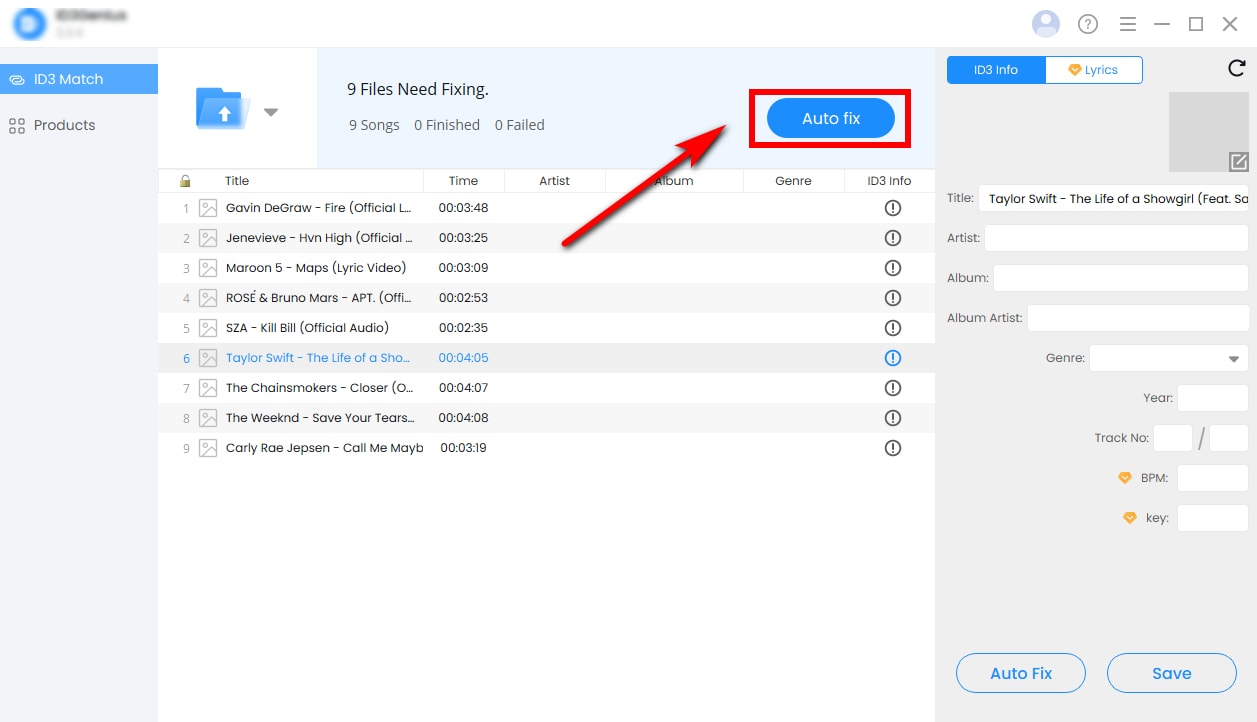

Tips:
Use the Lyrics tab to find synchronized lyrics. Enter the song name and artist, click "Match Lyrics", and you can edit, copy, or download them directly.
Pros
- Automatically fetch and embed album artwork
- Fix missing or incorrect metadata in 1 click
- Compatible with MP3, WAV, FLAC, M4A, and other audio formats
- Match accurate song info from MusicBrainz, Spotify, Discogs, and more
- Import multiple tracks or entire folders at once for batch editing
- Supports multiple ID3 tag versions for wide compatibility
- Easily undo changes to revert to the original metadata
Cons
- No app available for iOS or Android yet
Windows Media Player - Built-in Tool
If you're looking for a quick and easy fix, the classic Windows Media Player (WMP) won't let you down. It's free, already installed on your Windows PC, and can handle basic MP3 metadata edits, including adding album art, changing artist names, album titles, and genres. With the "Find Album Info" feature, WMP can even fetch cover art automatically for popular tracks, which is super handy.
How to add album art to MP3 via Windows Media Player?
- Open Windows Media Player, select the song in your music library, then right-click and choose "Show album."
- Select the "Edit info" icon.
- Click the album art area to add picture to MP3 from your local folder. Also, you can try "Update album info online," but in my experience, this is very hit-or-miss. Manually adding the artwork is more reliable, but you'll need to do it for each album individually.


Pros
- Simple interface
- Allows basic edits: add album art, artist, album, genre
- Reliable option for small collections
Cons
- Slow for large libraries
- Limited database coverage for rare tracks or remixes
VLC - Universal Media Player
Most of us know VLC Media Player as a go-to video player, but it's more than that. You can use it to view and edit metadata for individual MP3 tracks, including adding album art. It's free, lightweight, and works across Windows, Mac, and Linux, making it a handy MP3 image editor for small edits.
How to add an image to an MP3 file using VLC Media Player?
- Open your MP3 file in VLC, head to the "Tools" tab, and choose "Media Information" to further edit metadata.
- Hover over the album art box in the bottom-right corner, right-click, and choose "Add cover art from file" to add your desired image.
- When you're done, click "Save Metadata" at the bottom.


Pros
- Free and cross-platform
- Simple way to edit metadata for single tracks
- Supports MP3, AAC, WAV, FLAC, etc.
Cons
- No batch editing for multiple files
- Limited automation, manual edits required
- Not ideal for managing large music libraries
Part 1. How to Add Cover Art to MP3 on Mac
ID3Genius - MP3 Tagging Tool
If you prefer a streamlined way to keep your music library clean and consistent on Mac, you will love ID3Genius album cover editor. This intuitive MP3 tag editor updates your library fast and effortlessly. With a single click, it automatically fills in missing metadata, including album art, artist, title, album, genre, BPM, key, and even synchronized song lyrics using trusted sources like Spotify, MusicBrainz, and Discogs.
Furthermore, ID3Genius tag editor supports all major audio formats — MP3, M4A, FLAC, WAV, and more — giving you the flexibility to easily organize a personal playlist, manage a diverse music library, or prep tracks for a DJ set with professional-level precision.

Add album art to your MP3 files and bring your collection to life. Try it!
Pro ID3 Tag Editor
Auto-matchh and fix music metadata in 1 click
How to add image to MP3 with ID3Genius metadata editor?
-
Import Your MP3 Files
Drag and drop your MP3 tracks into the MP3 image adder or click "Add Files". Batch processing is supported, so that you can upload single tracks or entire folders at once. -
Auto-Fill Metadata
Click "Auto fix" and let the MP3 tagging tool do the heavy lifting. It automatically scans your files, pulls accurate info from trusted sources like MusicBrainz and Spotify, adds album art to MP3 files, and fills in other missing music metadata. Or, you can click the music cover area to manually add photo to MP3. -
Review and Save
Click "Save" to apply changes across all selected MP3 files. You can also manually edit individual tags, like album art, title, artist, genre, year, BPM, or key.


Pros
- Beginner-friendly and intuitive interface
- Automatically finds album artwork in bulk
- Corrects missing or incorrect metadata in seconds
- Works with MP3, WAV, FLAC, M4A, and more
- Fetches accurate song information from trusted sources
- Compatible with various ID3 tag versions
Cons
- Unavailable on iPhone & Android for now
Apple Music - Built-in App
Apple Music is the simplest built-in option for Mac users who just need to fix a few MP3 files. You can manually add or replace album artwork, edit basic metadata, and keep your library tidy.
How to add picture to MP3 file on Apple Music?
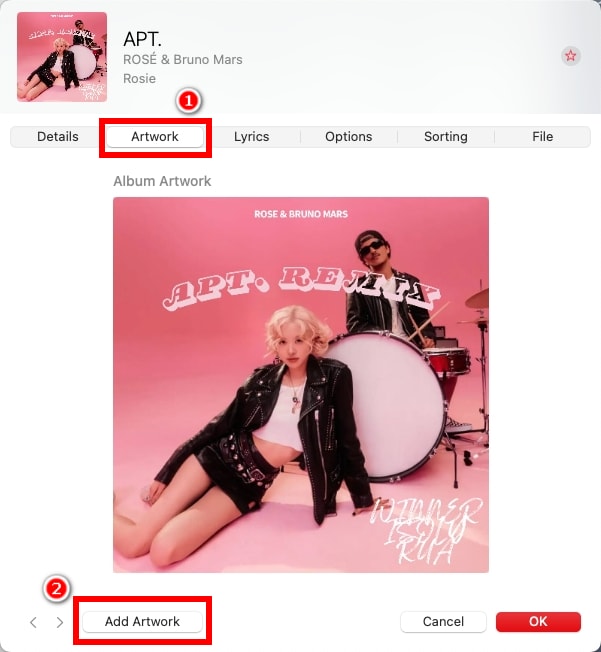
- Open the Apple Music app on your Mac and choose the song you want to add album art to. Right-click the song (or select multiple tracks) and select "Get Info."
- Drag and drop the album art image from your computer directly into the top-left artwork area.
- Or, you can head to the "Add Artwork" tab and click "Add Artwork" to edit the music cover.
- Click "OK" to save the updated metadata.


Pros
- Easy manual control
- Ideal for editing a few tracks
- Simple interface
Cons
- No batch-editing support
- Not ideal for large music libraries
- Basic tagging features only
How to Add Image to MP3 on Your Phone?
Album Art Grabber - Android App
If you want to add album art to MP3 files directly on your Android phone, Album Art Grabber is a popular choice. It lets you apply covers with just a tap from the web or your phone.
How to add album art to MP3 on Android using Album Art Grabber?
- Open the app and tap a song or album, then it will open the "Choose image from" window.
- Album Art Grabber can automatically add thumbnail to MP3 from LastFM or MusicBrainz, or let you add album art to MP3 files from SD card.
- Choose your favorite album cover, then you'll see a confirmation prompt — just hit the "Set" button, and the image will appear as your song's album cover when played in other music players.

Pros
- Fast and easy to use
- Automatic artwork search
Cons
- Artwork sources are limited
- Manual edits are still required
- No advanced metadata editing
Melodista - iPhone App
Melodista is a powerful app that allows you to manage your music library, including adding cover art to your MP3 files directly from your iPhone.
How to add album art to MP3 on iPhone using Melodista?
- Launch the app, then tap the "+" button to import MP3 files into your collection.
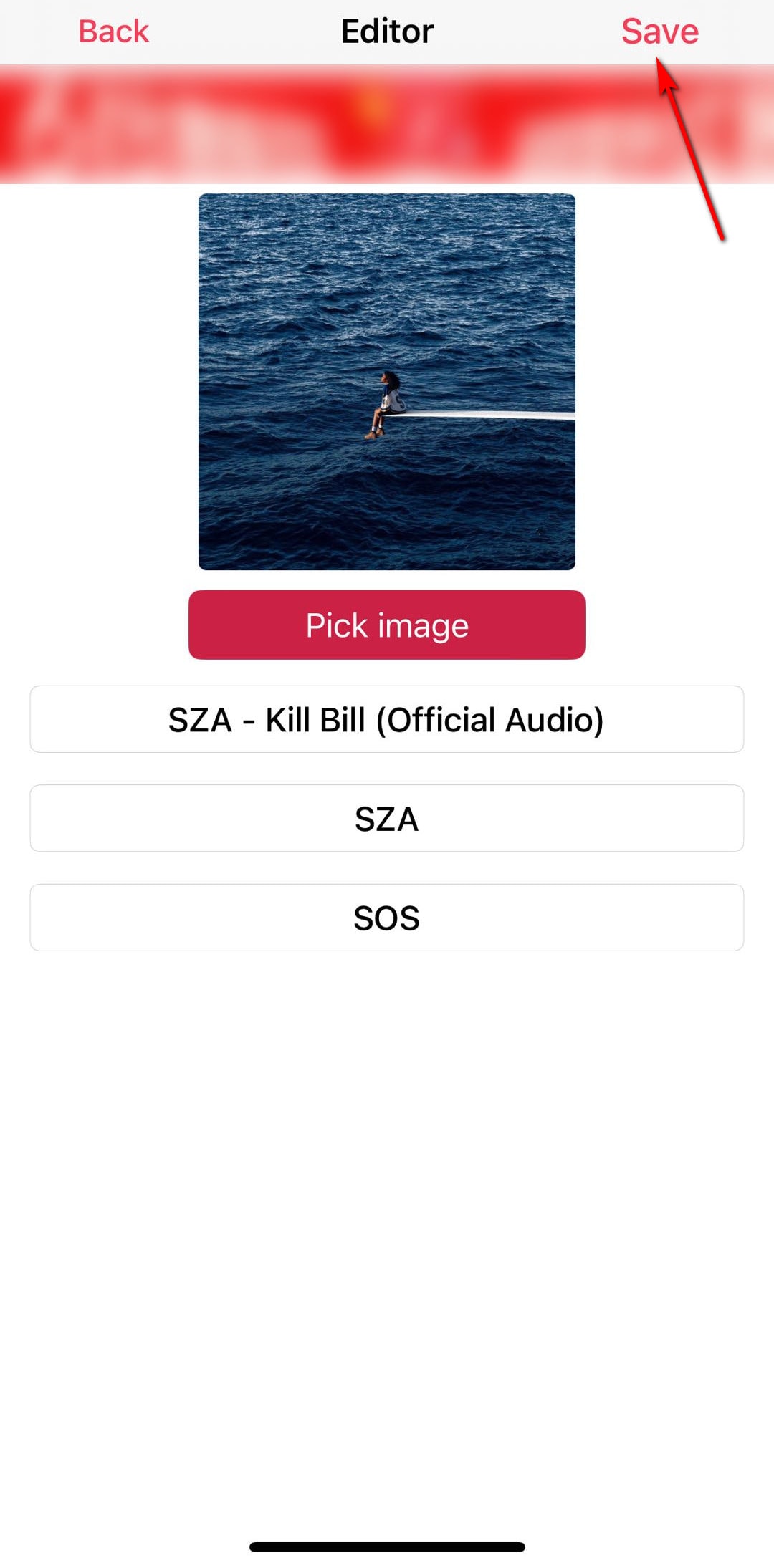
- Tap and hold the song you want to modify, and then select the "Edit Info" option.
- Tap the music cover area or the "Pick image" button. You can then browse your photo library, check your album library, or simply drag and drop an image to select your preferred cover.
- Hit "Save" to apply the new cover art. It will appear immediately when the song plays.


Pros
- Easy for beginners
- Built-in music player
Cons
- Not ideal for large music libraries
- Limited automatic tagging
- Ads appear when online
Conclusion
Adding album art to MP3 files instantly makes your music library look cleaner, more organized, and visually appealing. With the tools and steps above, you can quickly add high-quality album art to your MP3 files on Windows, Mac, iPhone, and Android devices, giving your library a more personalized, enjoyable look.
If you need more than adding artwork to MP3 in bulk and want to update other metadata, such as title, artist, album, genre, BPM, key, and lyrics, ID3Genius tag editor is the most efficient option. With just one click, it instantly updates your MP3 files with accurate metadata, saving time and effort while keeping your music library perfectly organized and professional.
Ready to upgrade your music collection? Use ID3Genius to add album art to MP3 files in seconds, making your library visually stunning and perfectly organized.
Pro ID3 Tag Editor
Auto-matchh and fix music metadata in 1 click
FAQs about How to Add Album Art to MP3
1. How do I add a picture to MP3 audio?
You can easily add cover art to MP3 files using ID3Genius tag editor:
1. Open ID3Genius MP3 metadata editor and click Add Files to upload your MP3 tracks.
2. Select a song and click the artwork box to change album cover or use Auto fix to automatically fetch cover art from reliable online databases.
3. Hit Save to apply the changes. The artwork is now embedded and visible in all media players.
2. Does MP3 support album covers?
Yes! MP3 files can store album artwork through ID3 tags. ID3Genius MP3 album cover editor makes it easy to add picture to MP3. The tool automatically retrieves high-quality album images from trusted sources like MusicBrainz and Spotify, and also lets you change MP3 cover art manually, making your MP3 library looks organized and visually appealing.
3. How do I add an album photo to an MP3 file?
With ID3Genius album cover editor, adding artwork to MP3 is simple and efficient:
1. Hit Add Files to import your MP3 files.
2. Use the Auto fix button to instantly match songs with accurate album art, or click the artwork area to manually insert album art into MP3.
3. Press Save to update the metadata. Your MP3 will now show album artwork across Windows, Mac, and mobile devices.
4. How do I add album artwork to Spotify?
While Spotify doesn't let you directly edit music downloaded from the platform, you can update local MP3 files and play them with album art:
1. Drag and drop your music files into ID3Genius metadata editor.
2. Click Auto fix to fetch album artwork from trusted databases and add album art to MP3 files in seconds.
3. Save the changes. When you import these local files into Spotify, the embedded album art will appear in your music library.
5. What is the best way to add album cover to MP3?
The most efficient way to add cover to MP3 files is to use ID3Genius album cover editor. It automatically searches for high-quality artwork from reliable sources like Spotify, Discogs, and MusicBrainz, then embeds it directly into your MP3 files. You can also replace or edit artwork manually, making it perfect for both quick fixes and full library clean-ups.
